Keyboard Actions
Actions in the Keyboard group of the actions menu.
Type Text's confusingly named Timeout between actions (milliseconds) was replaced by Sleep between characters (seconds). Values set in the old field are not carried over on upgrade — if you relied on it, re-enter it after upgrading.
Type Text
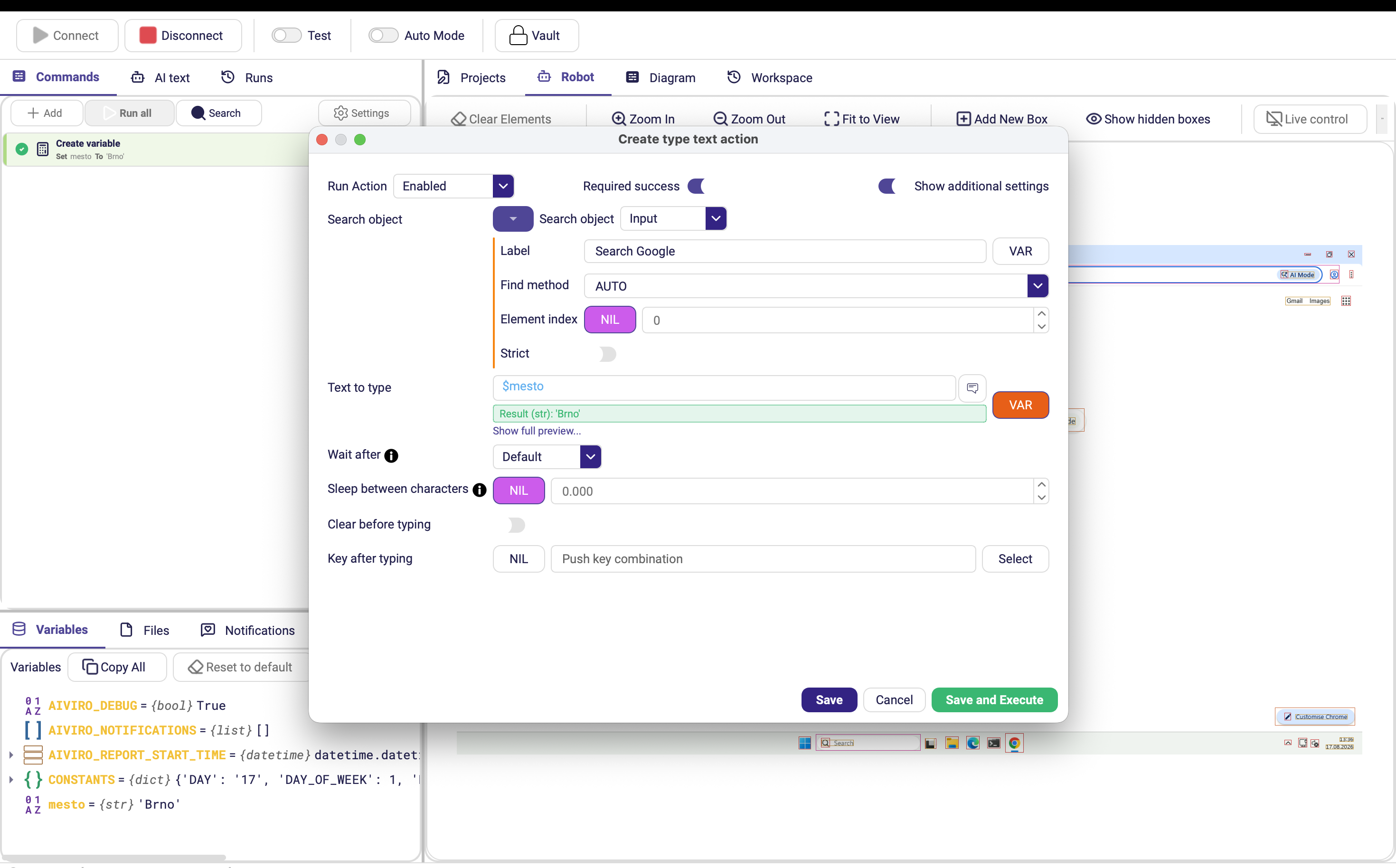
Types text into the active field, or into the field you point at with a search object. Shortcut Ctrl+Shift+T.
| Parameter | Description |
|---|---|
| Search object | Field to type into. Leave empty to type into whatever currently has focus. |
| Text to type | Text or variable content to enter. Click VAR to insert a variable. |
| Clear before typing | Selects the field's existing content and deletes it before typing. Default off. How the selection is made is set by Selection method. |
| Key after typing | A key pressed once the text is in — typically Enter or Tab. Optional; saves a separate Key Shortcut action. |
| Wait after | Pause after typing. |
| Sleep between characters | Pause in seconds before every character, including the first. Set it for applications that swallow characters when typed at full speed. (Advanced options) |
| Selection method | How the existing text is selected when Clear before typing is on. Default Ctrl+A. (Advanced options) |
| Required success | Stop the scenario if typing fails. |
Stop takes effect in the middle of a long text: the run checks for a stop request between typed segments. Up to 0.24.0 that check only happened when Sleep between characters was set, so typing a very long text could not be interrupted at all — you do not need to configure a sleep to be able to stop a run any more.
Selection method
Some applications ignore Ctrl+A inside their input boxes, and in others it selects far too much — a whole data grid instead of the one cell you meant. In both cases clearing before typing either does nothing or wipes the wrong thing. Selection method lets you pick how the robot selects what it is about to replace.
| Option | How it selects | When to use it |
|---|---|---|
| Ctrl+A | Sends Ctrl+A. | The default; works in ordinary text fields. |
| Double click | Double-clicks the field. | Fields that respond to a double-click selecting the word or the value. Needs a search object. |
| Left click | Clicks the field once. | Fields that select their whole content when they receive focus. Needs a search object. |
| End + Shift+Home (line select) | Presses End, then Shift+Home. | Selects only the current line. The one to reach for in stubborn legacy inputs and grid cells where Ctrl+A grabs the whole grid. |
Double click and Left click have to know where to click, so they only work when the action has a Search object. The other two methods act on whatever has focus.
Key Shortcut
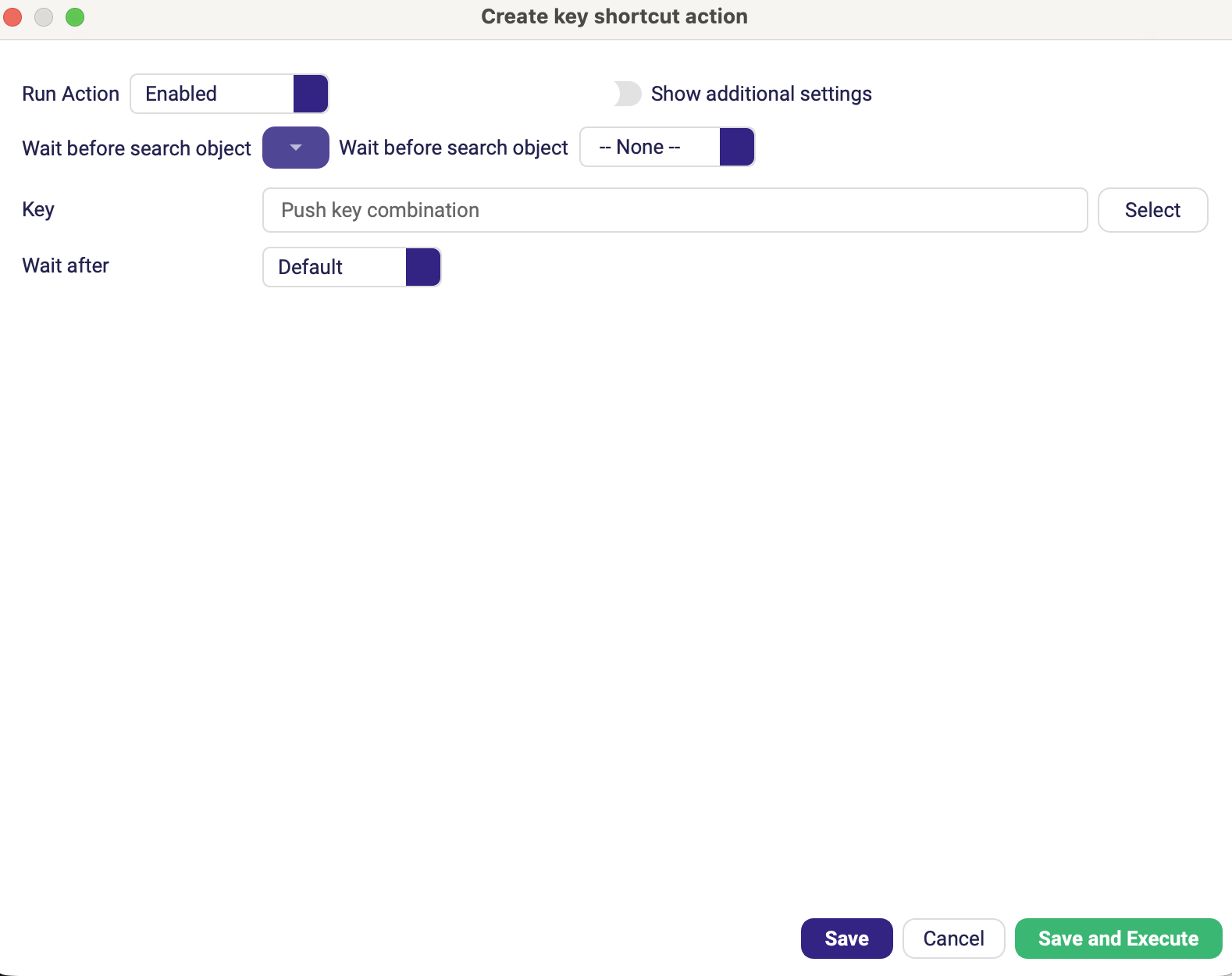
Sends a key or key combination. Shortcut Ctrl+Shift+K.
| Parameter | Description |
|---|---|
| Key | The key combination to send, e.g. Ctrl+C or Alt+F4. Num-lock keys are supported. |
| Wait after | Pause after the keys are sent. |
| Sleep between keys | Pause between the individual key presses. (Advanced options) |
Since 0.24.0 the individual presses are spaced out by default. Applications that resolve shortcuts through their menus used to miss chords such as Alt+S+2 when all keys arrived at once; raise Sleep between keys if one still does.
Clear
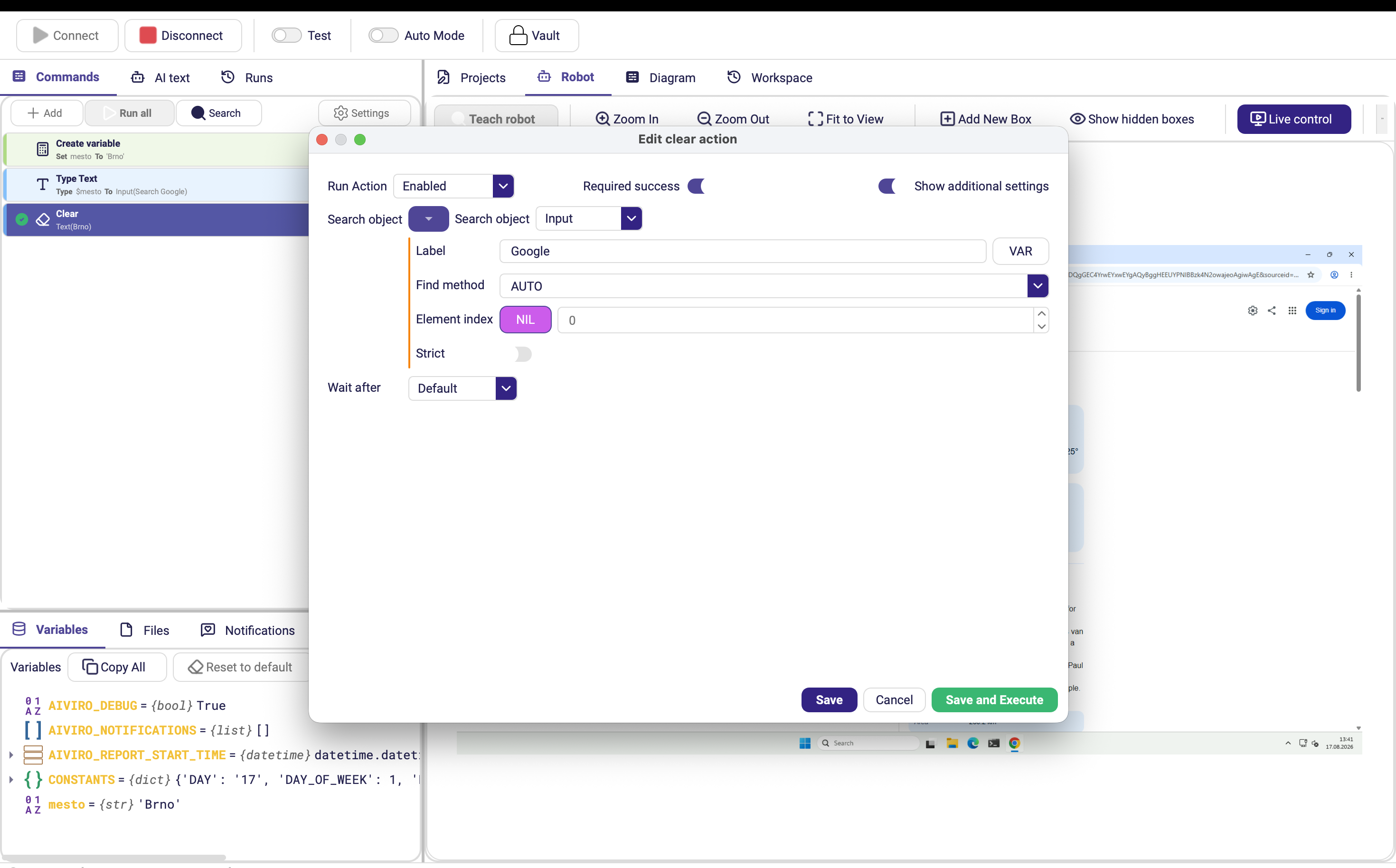
Clears the contents of an input field.
| Parameter | Description |
|---|---|
| Search object | Field to clear. Leave empty for the focused field. |
| Required success | Stop the scenario if the field cannot be cleared. |
| Wait after | Pause after clearing. (Advanced options) |
| Selection method | How the existing text is selected before it is deleted. Default Ctrl+A; the options are the same as for Type Text. (Advanced options) |
Clipboard Get / Clipboard Set
Reads the clipboard into a variable, or writes a value to the clipboard.
On an RDP robot these appear as [RDP] Clipboard Get and [RDP] Clipboard Set and act on the clipboard of the remote session; the unprefixed versions are Desktop-only and act on your local clipboard.

Clipboard Get
| Parameter | Description |
|---|---|
| Save to variable (name) | Variable that receives the current clipboard content. |
Clipboard Set
| Parameter | Description |
|---|---|
| Text | Plain text or variable value to place on the clipboard. |
Copying a value with Ctrl+C and reading it with Clipboard Get is often more reliable than reading text off the screen — no OCR involved. Use it whenever the application lets you select and copy the value.