Positional Search
A positional search finds a target by its position relative to another element. Use it whenever the value you need changes every run but something stable sits next to it — a field label, a table column header, a row identifier.
Fields
| Parameter | Description |
|---|---|
| Reference | The stable anchor the robot can always find, e.g. the Email: label or a column header. |
| Query | The target to find in the given direction from the reference. Leave its Label empty to match any element of that type. |
| Element index | Which match to take when several elements qualify. (Advanced options) |
Both Reference and Query are themselves full search objects, so each has its own Label, Find method and type.
Search directions
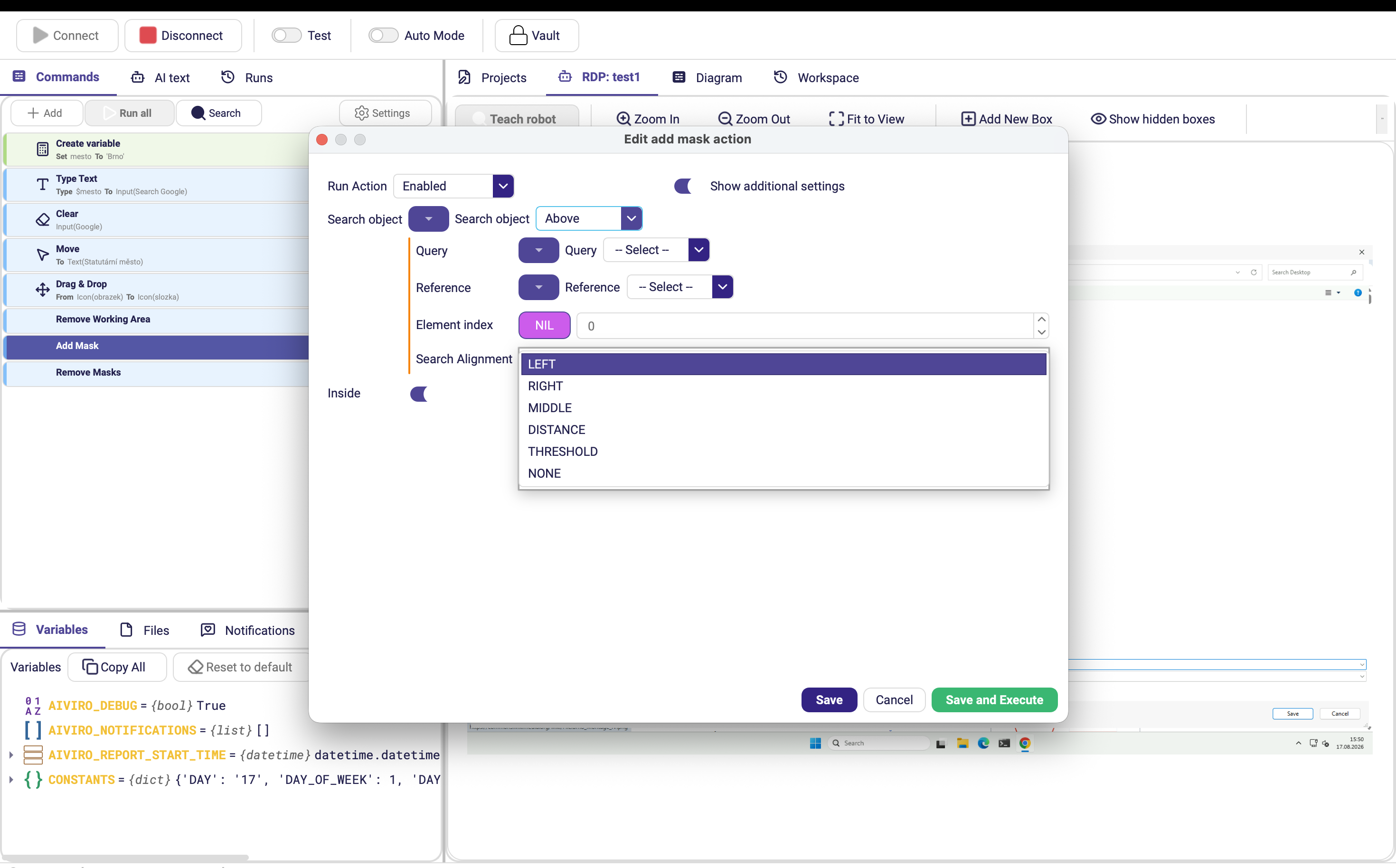
Above / Below — find the element above or below the reference.
| Parameter | Description |
|---|---|
| Search Alignment | Which anchor point of the reference the horizontal distance is measured from. One value from the dropdown: LEFT (default), RIGHT, MIDDLE, DISTANCE (measure on both axes), THRESHOLD (accept only strictly aligned elements) or NONE. |
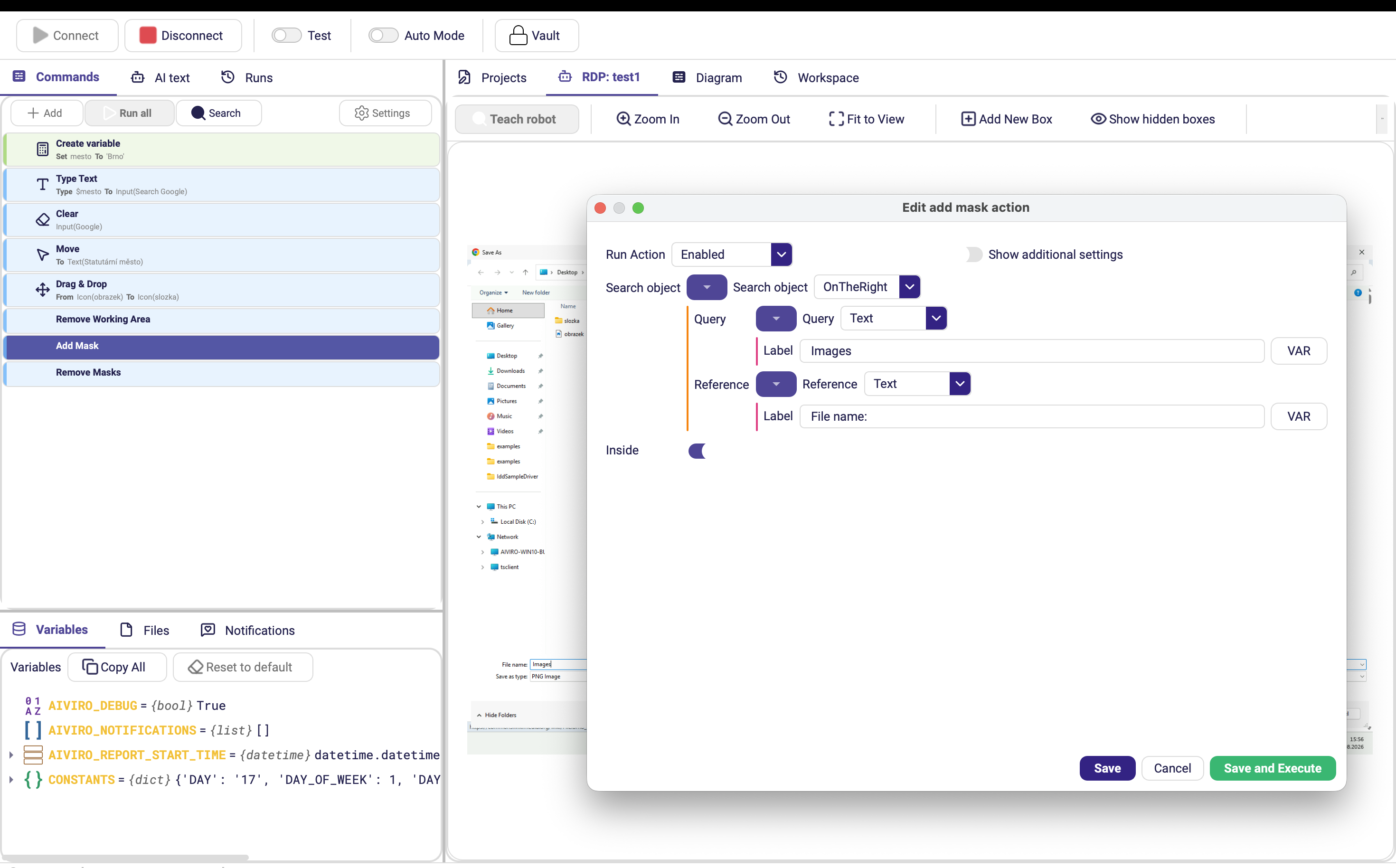
On the left / On the right — find the element to the left or right of the reference.
| Parameter | Description |
|---|---|
| Search same row | When on (default), both elements must sit on the same row. Turn it off for layouts where the value is slightly offset vertically. |
Worked example
Reading an invoice number that changes every time, printed to the right of a fixed label:
| Field | Value |
|---|---|
| Object type | On the right |
| Reference → type / Label | Text / Invoice number |
| Query → type / Label | Text / ^\d{8}$ |
| Query → Find method | REGEX |
| Search same row | on |
The robot locates the fixed label, then reads the first eight-digit number on the same row — regardless of where the window sits on screen.
Anchoring to a label makes the automation immune to layout shifts. A regular expression on the Query then picks only the part you want, ignoring surrounding text such as a currency suffix.