Recognized UI Elements
The detection model processes a screenshot and returns the elements that are suitable for interaction. Run Teach robot (Shift+E) in the robot live view to see what it found, then right-click an element to build an action around it.
Common settings
Every recognized element shares these fields. Find method, Element index and Strict live in the Advanced options group — turn on Settings → General → Always show additional options if you want them expanded by default.
| Parameter | Description |
|---|---|
| Label | Text of the target element. For a Text object this is its own content; for an Input, CheckBox or Icon it is the label next to the control. Accepts variables. |
| Find method | How the label is matched. Default AUTO. See the table below. |
| Element index | When several elements match, which one to take — indexed from 0, left-to-right then top-to-bottom. Negative values count from the end (-1 is the last match). Empty means "expect exactly one match". |
| Strict | When off and the requested type is not found, the Editor retries as a plain Text object with the same label. Turn it on to require the exact type. Default off. Not available on Text. |
Find methods
One comparison method is always active; the flags can be combined with it.
| Method | Behaviour |
|---|---|
| AUTO | Tries several methods and picks the one that matches. The default — right for most cases. |
| DYNAMIC | Matches each word separately, so Hello world is found inside Hi Hello world !. Can be combined with EQUAL or SIMILAR. |
| EQUAL | The whole string must match character for character. |
| SUBSTRING | The label must appear as a substring of the on-screen text. |
| SIMILAR | Similarity-based match that tolerates small OCR deviations. |
| REGEX | The on-screen text must match the regular expression. |
| Flag | Behaviour |
|---|---|
| CASE_SENSITIVE | Makes the comparison case-sensitive. Text is matched case-insensitively by default. Ignored for REGEX. |
| EXCLUSIVE | Matches only elements that contain the specified text and nothing else. |
| GLOBAL | Returns every occurrence in a line, not just the first. |
| USER_NORMALIZATION | Applies the custom text normalization defined for the project before comparing — useful for fixing recurring OCR confusions such as O versus 0. |
EXCLUSIVE and GLOBAL are mutually exclusive — you can use at most one of them. CASE_INSENSITIVE is deprecated and has no effect; matching is case-insensitive unless you add CASE_SENSITIVE.
UI elements
Text – any visible text. The most common and most forgiving object.
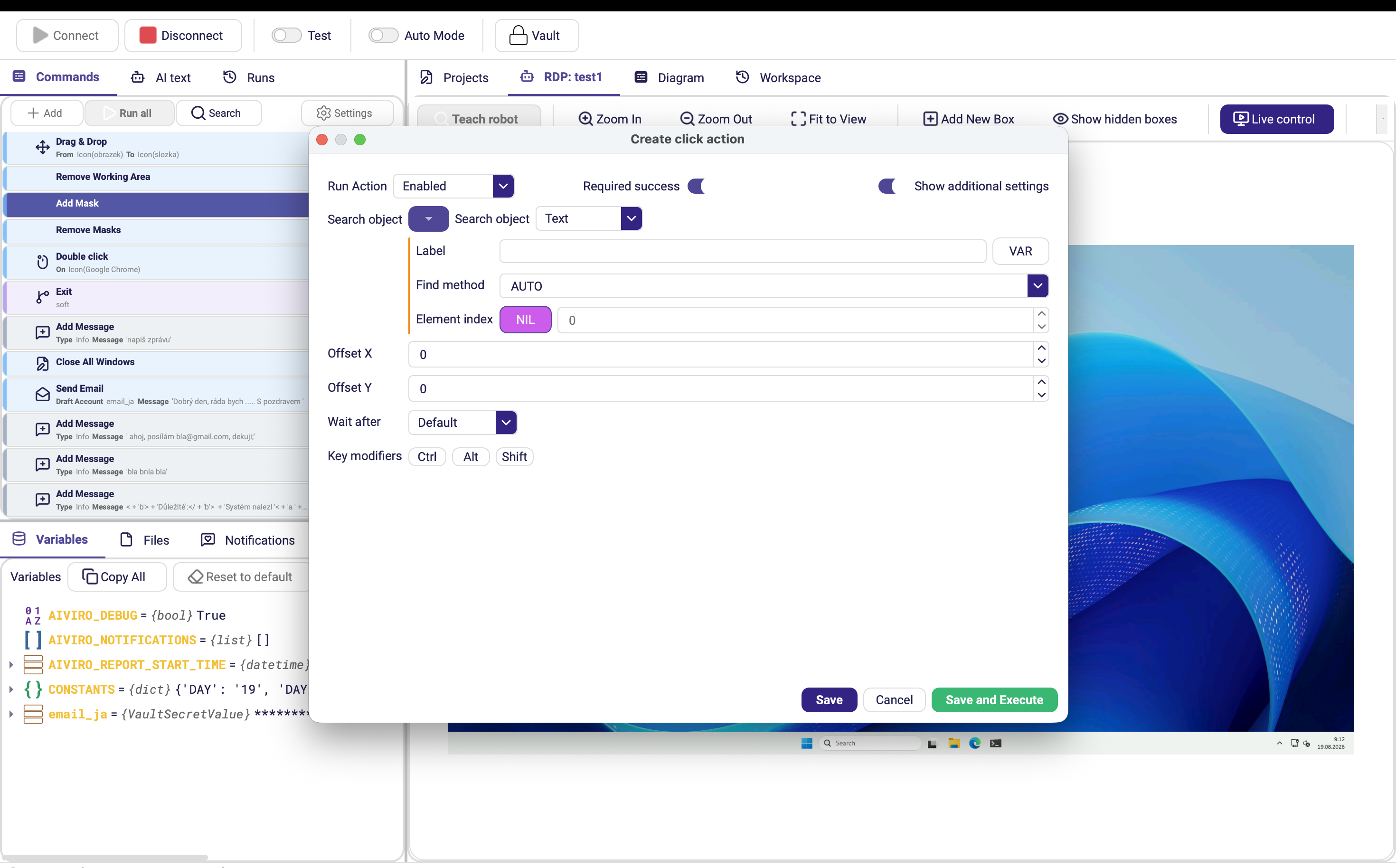
Button, CheckBox, RadioButton – standard interactive controls.
CheckBox also covers on/off switches (toggles). There is no separate Toggle entry in the Search object dropdown — pick CheckBox and give it the switch's label.
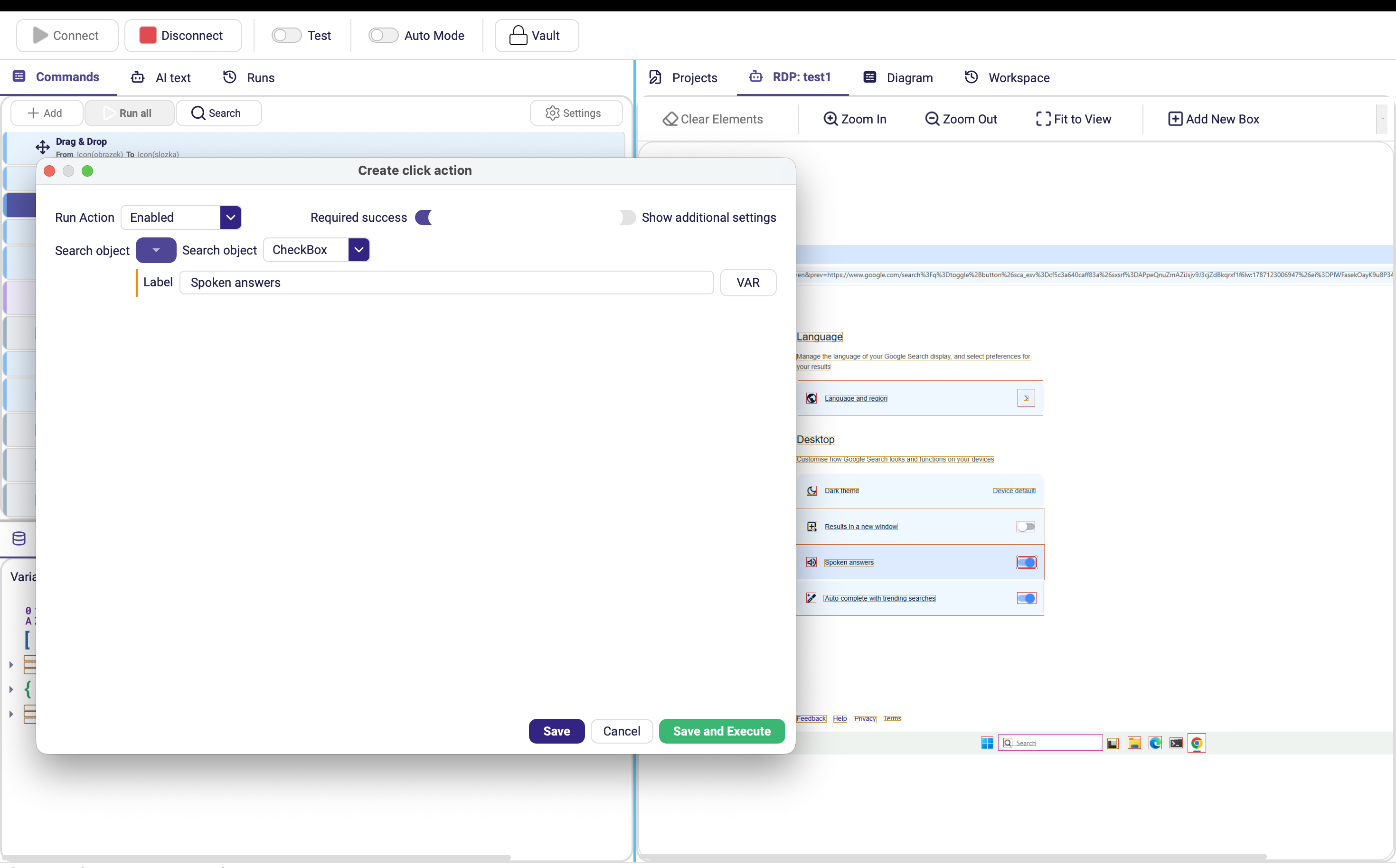
In the screenshot above, CheckBox with the label Spoken answers targets a switch
control on a settings page.
Icon – UI icons, identified through the text next to them.
Input, TextArea – input fields; the nearest label identifies the field.
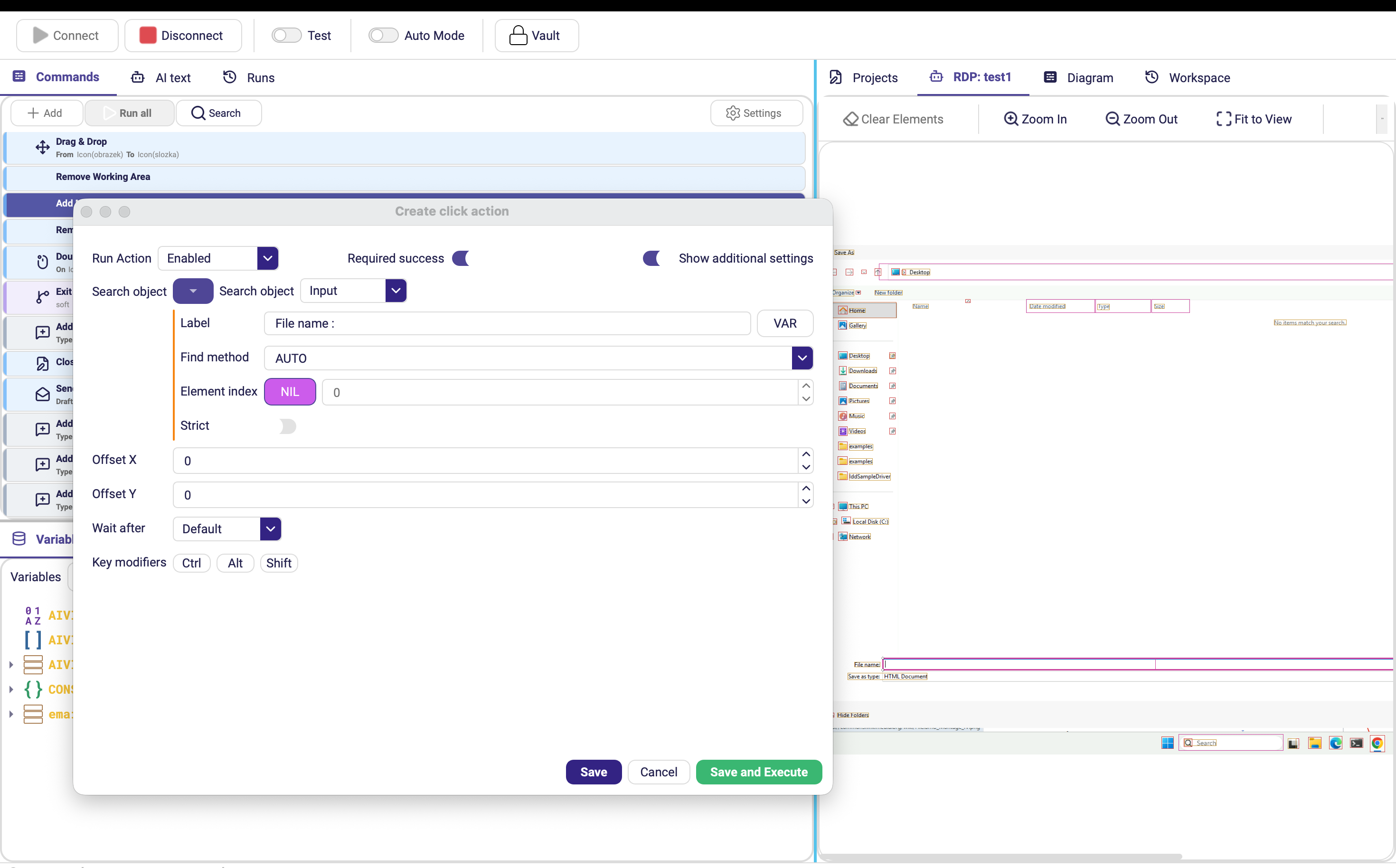
Image – a picture you supply, matched by similarity. Load it from a file, the clipboard, or by cropping the live view.
| Parameter | Description |
|---|---|
| Image | The reference bitmap to look for. |
| Threshold | Similarity required for a match, 0–1. Default 0.85. Lower it if the image is not found, raise it if the wrong thing matches. |
| Element index | Which occurrence to take when the image appears several times. |
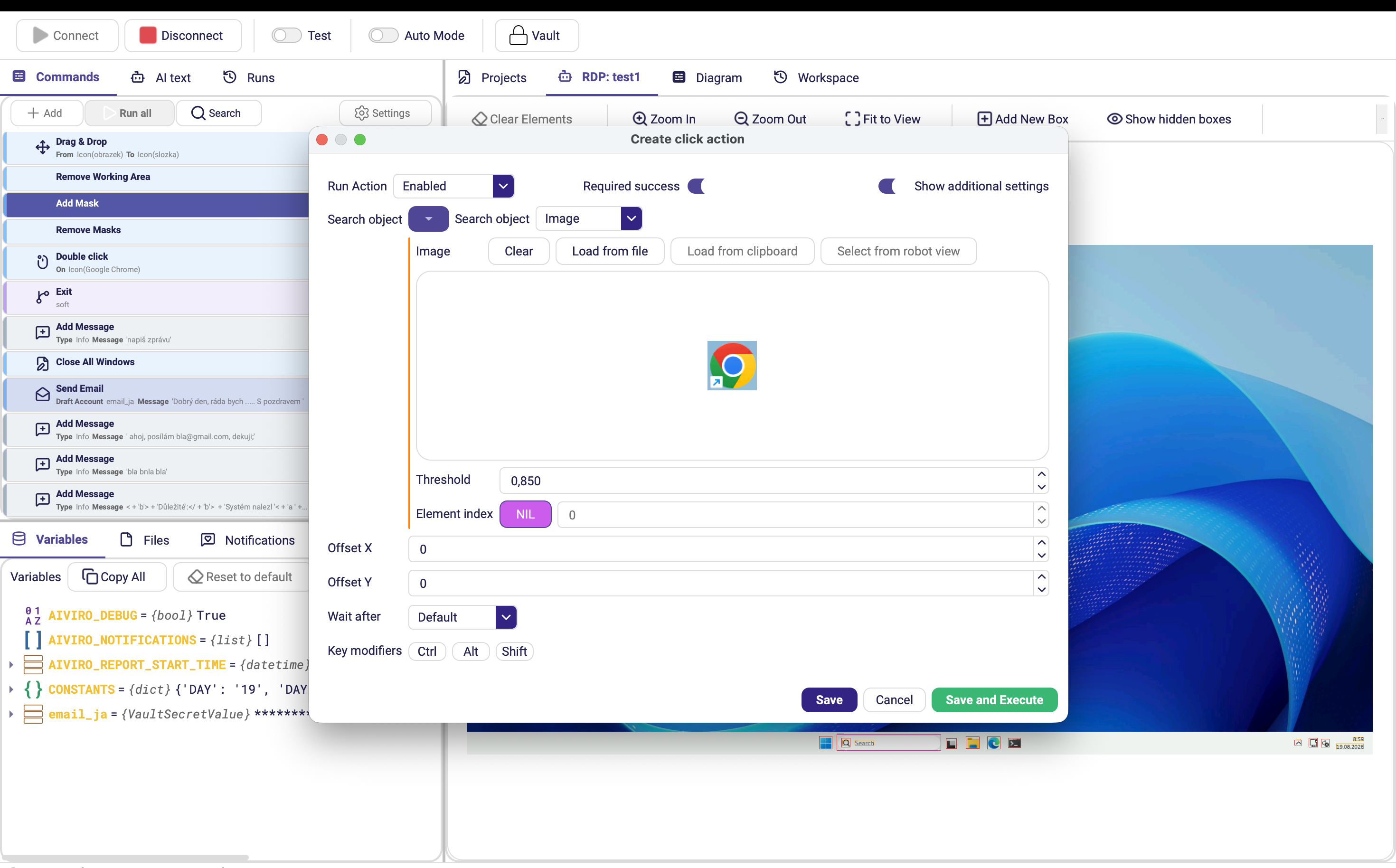
Prefer text-based objects over Image whenever the element has any readable label — image matching breaks on theme changes, DPI scaling and re-styling.