Installation Guide
This guide covers the Windows installer, which is the supported way to install Aiviro Editor for most users. For Linux and macOS notes see System Requirements.
Step 1: Download the installer
Go to the official Aiviro website and download the latest version of Aiviro Editor.
Step 2: Run the installer
Locate the downloaded file and double-click it. The installation wizard starts. Click Next to continue.
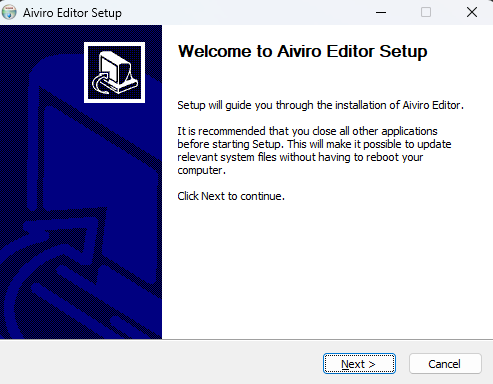
If an older Aiviro Editor is already installed, the wizard silently uninstalls it first and then installs the new version into the same location. Your projects, configuration and Vault entries are not removed.
The installer no longer has a license page. From 0.25.0 the End User License Agreement is shown by the Editor itself, the first time you start it — see First run. That way users of the portable ZIP, the macOS DMG and the Ubuntu package see it too, which they never did when only the Windows installer asked.
Step 3: Choose installation type
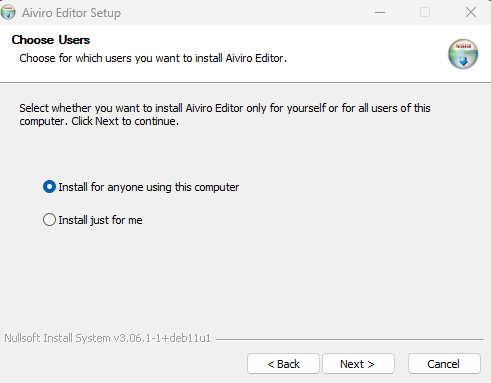
Select whether to install:
| Option | Meaning |
|---|---|
| All users | Installs for everyone on this machine. Requires administrator rights. |
| Current user only | Installs into your own profile — no administrator rights needed. |
Click Next.
Step 4: Select components
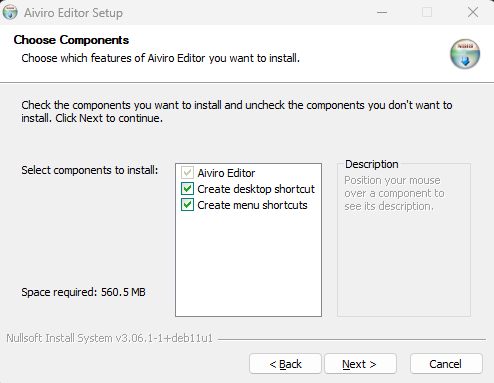
| Component | Description | Default |
|---|---|---|
| Aiviro Editor | Main application. Always installed and cannot be unchecked. | ✓ |
| Create desktop shortcut | Adds Aiviro-Editor to your desktop. | |
| Create menu shortcuts | Adds an Aiviro-Editor folder to the Start menu, including an uninstaller shortcut. |
After selecting, click Next.
Step 5: Choose installation location
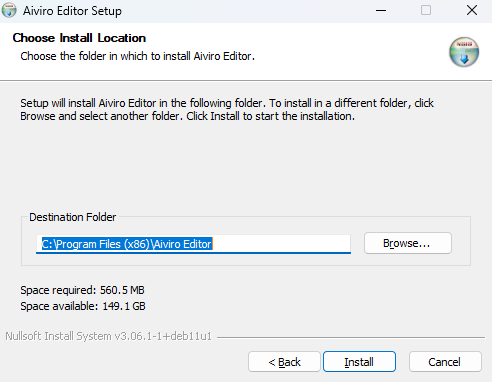
The default location depends on the installation type you picked in Step 3 — a
per-machine install goes to Program Files, a per-user install into your own
profile. To change it, click Browse…, then click Install.
Step 6: Installation progress
The installer unpacks and copies the files. When it finishes, a confirmation page appears. Check Run Aiviro Editor to launch it immediately, then click Finish.
After installing
Continue with First Launch & Basic Setup to enter your licence credentials and create your first robot profile.
Running scenarios without the Editor window
The installer gives you the aiviro-editor command as well as the application, so a saved
scenario can be run from a scheduler or a CI pipeline with no window open. For developers the
same capability ships as an installable Python package, which lets one robot connection run
several scenarios in a row.
See Headless Execution.
Uninstalling
Use Settings → Apps in Windows, the Uninstall shortcut in the Start-menu
folder, or run uninstall.exe from the installation directory.
Screenshots may vary slightly depending on the installer version and your operating system.