Orchestrator – Scheduling & Automatic Execution
The Orchestrator turns your design-time scenarios into production jobs. Once enabled, it launches each scenario at the time you specify — no extra code, no manual clicks.
Why it matters
| Benefit | What it means in practice |
|---|---|
| Hands-off execution | Jobs start on their own according to the schedule you define. |
| Central timing logic | All schedules live inside the project file — no external cron, Task Scheduler or Windows service. |
| Production safety | Scenarios run exactly as tested in the Editor; nothing is modified between design and production. |
- Aiviro Editor must stay open — on your workstation or, better, on a dedicated VM.
- The scenario's Active flag and the global Auto Mode switch must both be on.
- The robot Profile the scenario needs must exist on that machine, and any
{{SECRET:…}}keys must be present in its Vault.
Since 0.24.0 the Orchestrator is no longer the only way to run a scenario unattended.
aiviro-editor run executes a saved scenario with no Editor window at all and returns a
success/failure exit code, so Windows Task Scheduler, cron or a CI pipeline can drive it
instead — see Headless Execution.
Use the Orchestrator when you want schedules to live inside the project and be visible in the Editor; use the CLI when an external scheduler already owns the timing, or when nobody should have to keep a desktop session logged in.
Scenario settings
Open Scenario Settings from the Settings button in the Commands panel header.
Scheduling
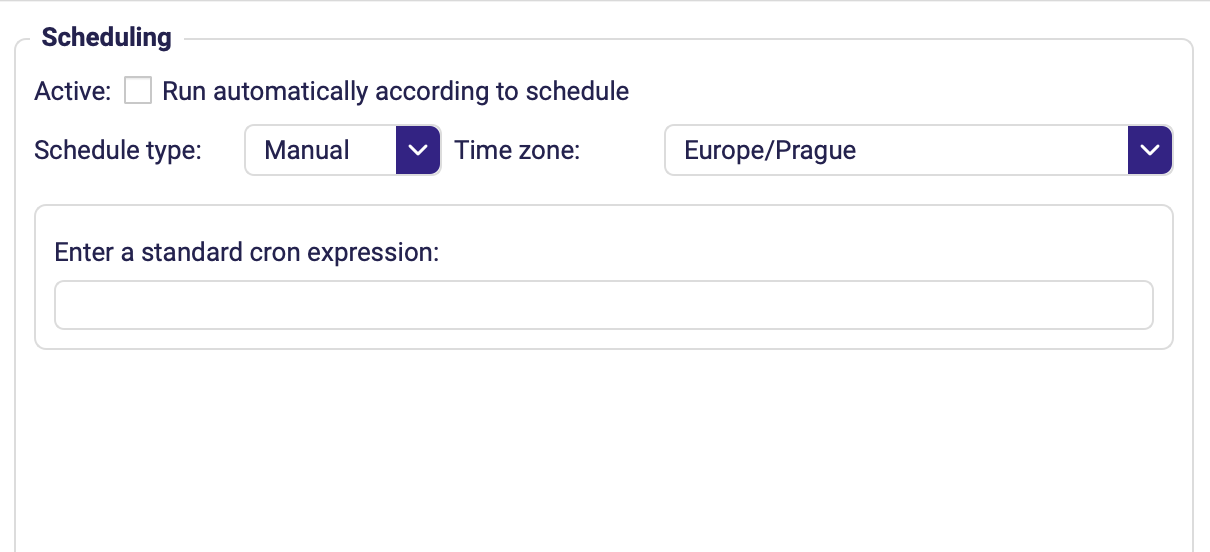
| Field | Description |
|---|---|
| Active | Ticking Run automatically according to schedule allows the Orchestrator to pick this scenario up. Nothing is scheduled while it is off. |
| Schedule type | Manual, Minutely, Hourly, Daily, Weekly or Monthly. |
| Time zone | Keeps the schedule aligned when the Editor machine and your team are in different zones. |
The area below these fields changes with the Schedule type — the screenshot shows Manual, which asks for a cron expression. Once a schedule is configured, that area also shows a plain-language description of what you set. Read it before saving; it is the quickest way to catch an off-by-one-hour mistake.
Schedule types
| Type | When it runs |
|---|---|
| Manual | According to a cron expression you enter yourself. |
| Minutely | Every minute, or every n minutes. |
| Hourly | At the defined minute of each hour. |
| Daily | At the defined Start time each day. |
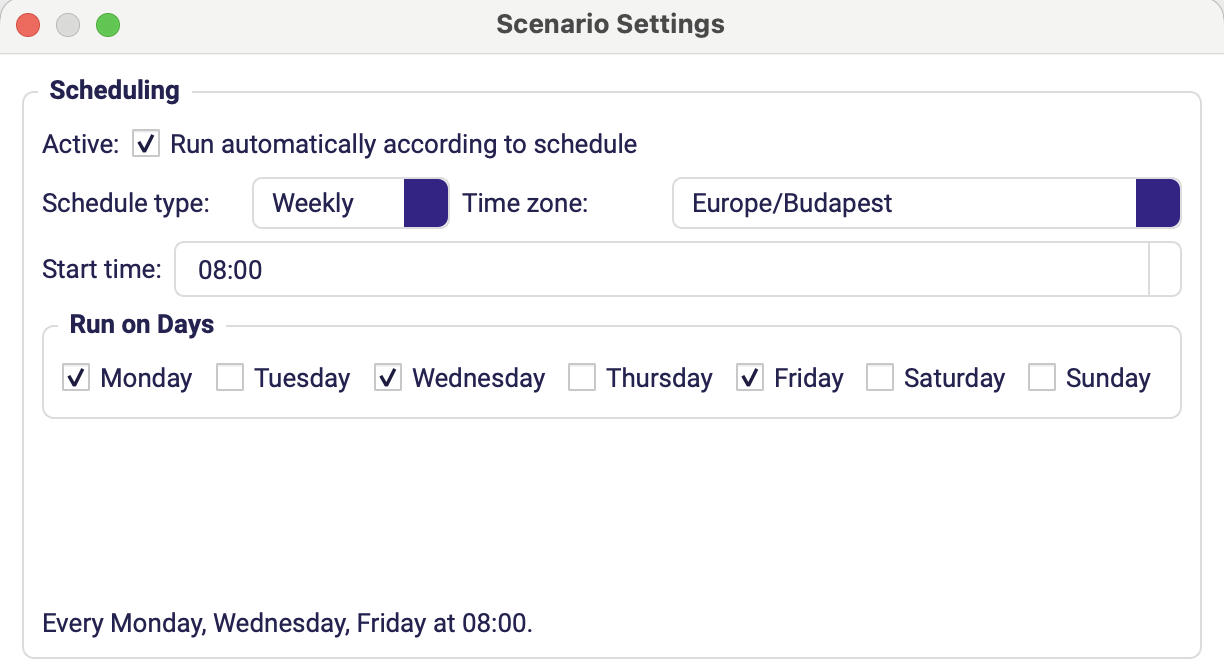
| Weekly | At the defined Start time on the weekdays you tick under Run on Days. |
| Monthly | At the defined time on the selected day of the month. |
For Manual, enter a standard cron expression.
For the rest, the area fills with the fields that type needs — Weekly, for example, asks for a Start time and a Run on Days row of checkboxes, and spells the result out underneath:
Execution
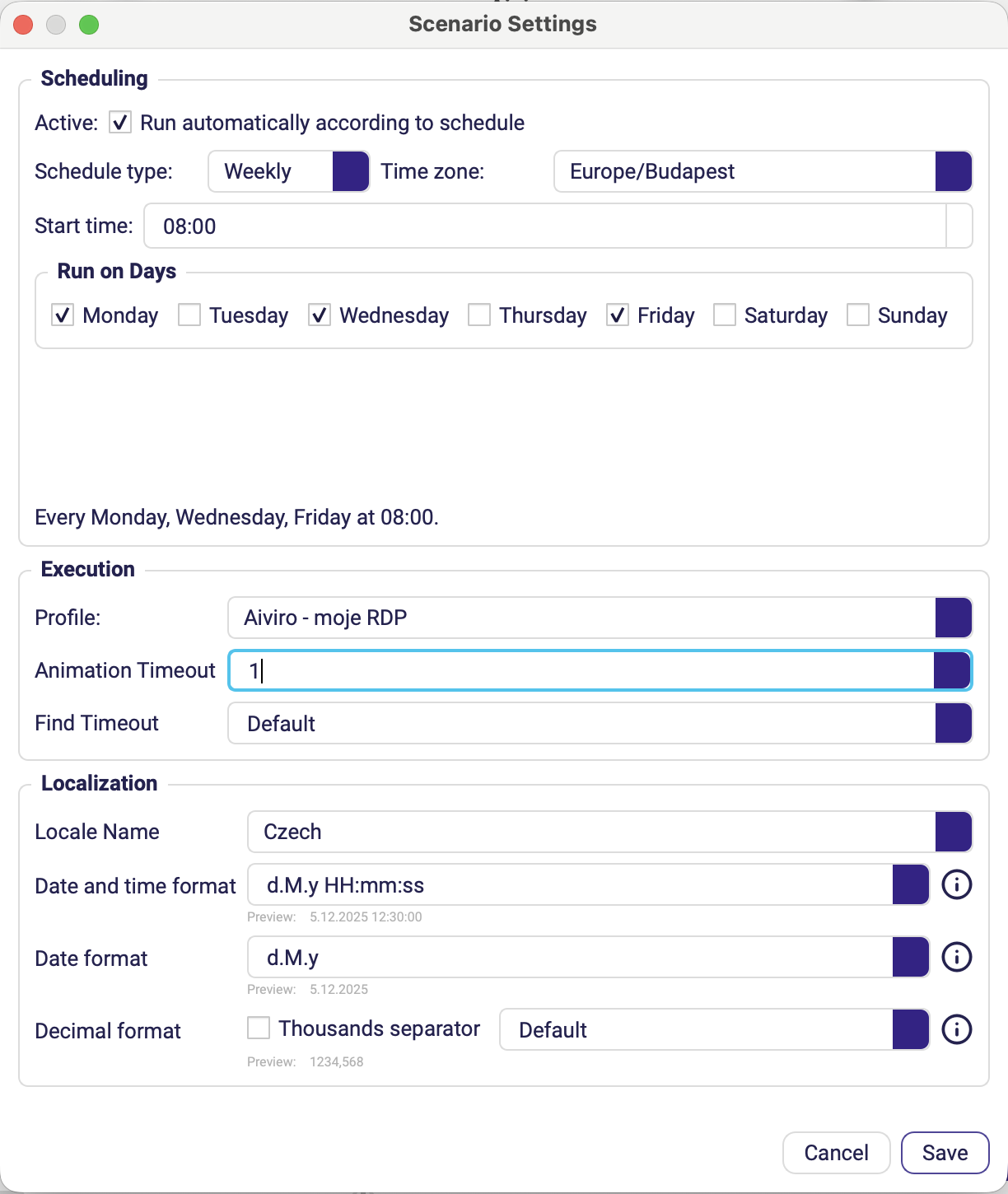
Execution and Localization sit below Scheduling in the same dialog:
| Field | Description |
|---|---|
| Profile | Which saved robot profile the scheduled runs use. |
| Animation Timeout | Per-scenario override of the global default. |
| Find Timeout | Per-scenario override of how long element searches may take. |
Leave the timeouts on their defaults unless a particular application needs more (or less) time to respond.
Localization
New in 0.23. Controls how the scenario formats and parses values, independently of the Editor's interface language.
| Field | Description |
|---|---|
| Locale Name | Locale the scenario runs under. |
| Date and time format | Format for combined date-time values. |
| Date format | Format for date-only values. |
| Decimal format | Decimal separator used when reading and writing numbers. |
The defaults come from Settings → General; set them here when one scenario works against a system with different conventions from the rest.
This is the fix for the classic "the robot typed 1.50 and the application rejected it"
problem — set Decimal format to match the target application rather than patching
every action.
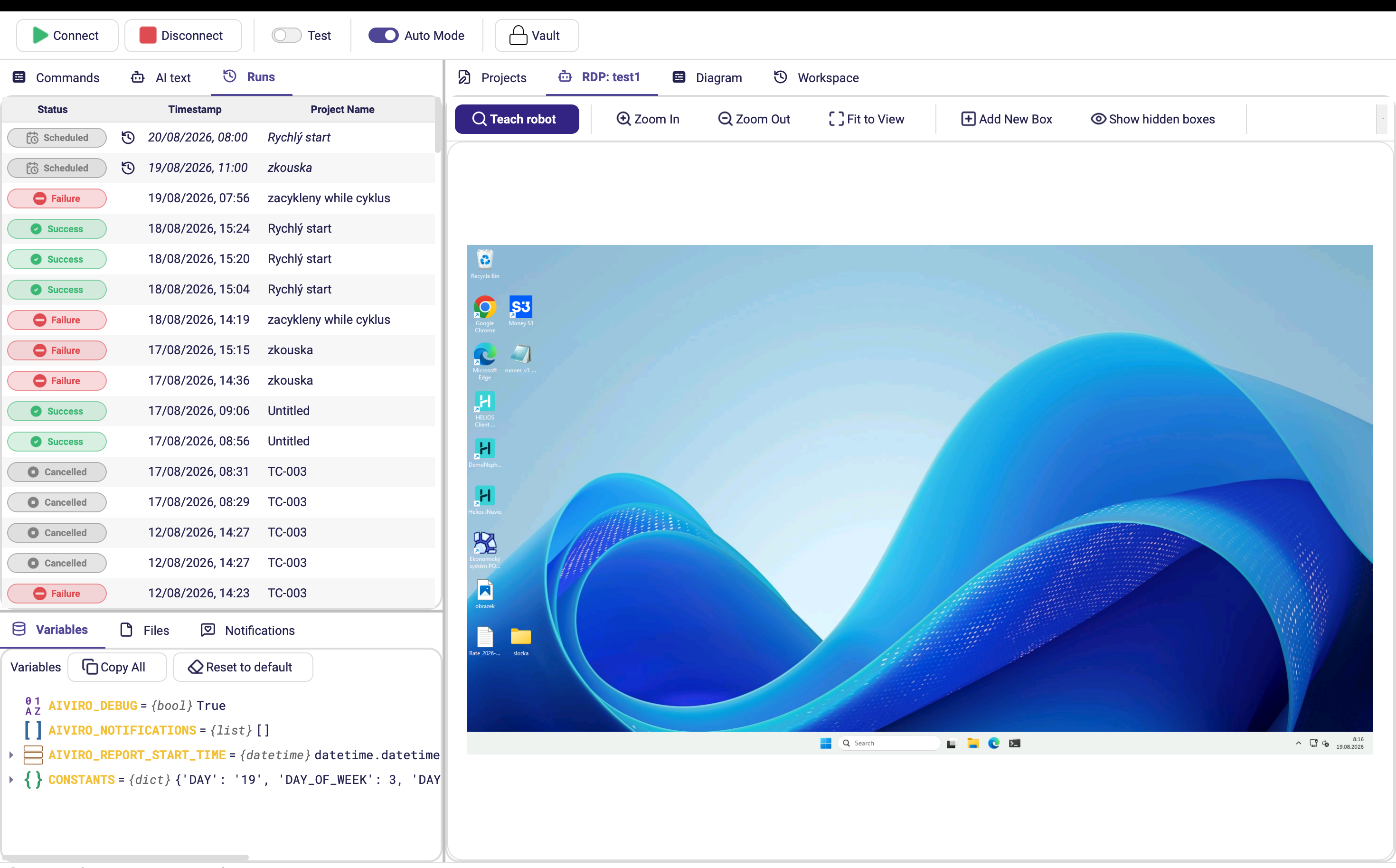
Where to see what is scheduled
There is no separate schedule panel — upcoming runs live in the Runs panel, right above the run history. When Auto Mode is on, every open project with Active ticked adds its next run to the list with a Scheduled badge and the planned start time (in the Editor's time zone). Once the run starts, the entry becomes an ordinary history row and its status continues through Success, Failure or Cancelled.
Putting it together
- Design the scenario and test it manually with Run all.
- Move every credential into the Vault.
- Open Scenario Settings, tick Active, choose a schedule type and time.
- Pick the Profile the run should use, and check the Time zone.
- Save.
- Switch Auto Mode on in the main toolbar.
- Leave Aiviro Editor running.
Need to pause production quickly? Switch Auto Mode off — all scheduled jobs stop until you turn it back on, and no scenario settings are touched.
Make the scenario survive unattended runs
A scenario that works while you watch it can still fail at 03:00. Four habits make the difference:
| Habit | How |
|---|---|
| Report what happened | Add Message through the run, then Send As Email at the end — see Notification actions. |
| Report failures too | Set Run Action to Run on Failure on a second Send As Email so a broken run is not a silent one. |
| Leave the machine clean | End with Close All Windows set to Run Always, so a leftover dialog cannot break tomorrow's run. |
| Never wait for a human | Keep Input Form out of scheduled scenarios, or gate it with Enabled (Test). |
Troubleshooting
| Symptom | Likely cause | Fix |
|---|---|---|
| Scenario never starts | Active not ticked, or Auto Mode off. | Enable both. |
| Runs at the wrong hour | Mismatched Time zone. | Set the correct zone in Scenario Settings. |
| Warning "No manual schedule provided" | Schedule type is Manual with no cron expression. | Enter a valid cron expression. |
| Run fails immediately with a Vault error | The keys the scenario references are not in this machine's vault. | Add them, or Import Vault — see Missing keys. |
| Run fails connecting to the robot | The pinned Profile does not exist on this machine. | Recreate the profile with the same name, or repoint Scenario Settings → Execution → Profile. |
| Runs hang forever | An Input Form is waiting for input. | Remove it or set it to Enabled (Test). |