RDP Robot
Description Automates a remote machine over Remote Desktop Protocol. This is the recommended type for production: the robot works in its own remote session, so your own desktop stays free.
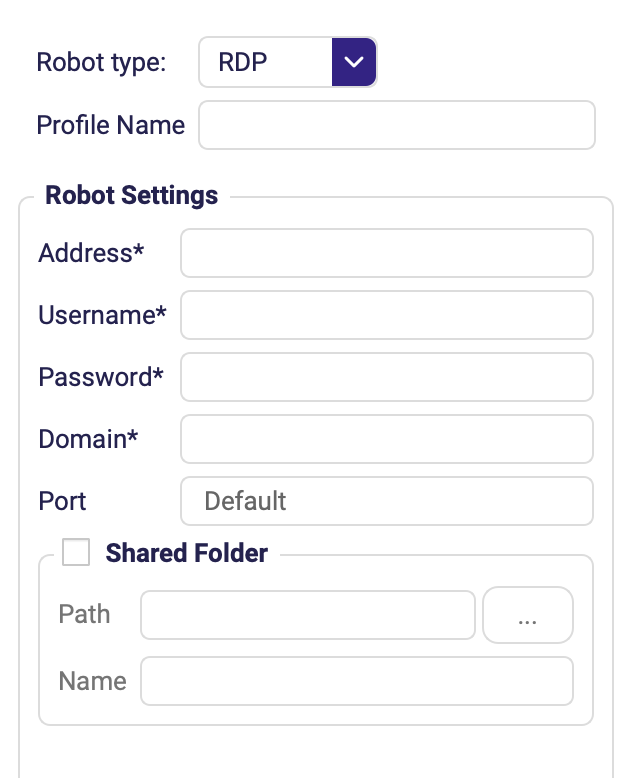
The screenshot shows the top of the form. Gateway, Connection File and the options described further down sit below the visible area — scroll the dialog to reach them.
Connection settings
Fields marked with * are required.
| Field | Description |
|---|---|
| Profile Name | Name under which this configuration is saved for reuse. |
Address * | Address of the remote machine. |
Username * | Login username on the remote machine. |
Password * | Login password. Store it in the Vault and reference it instead of typing it in plain text. |
Domain * | Windows domain of the account. |
| Port | RDP service port. Leave Default unless your server listens elsewhere. |
| Connection File | Load the connection details from an existing .rdp file instead of filling the fields by hand. |
Shared folder
Tick Shared Folder to redirect a local folder into the remote session — that is how files move between the two machines. The folder also shows up as Shared folder (RDP) in the Files panel.
| Field | Description |
|---|---|
| Path | Local folder to share with the remote session. |
| Name | Name the share appears under on the remote machine. |
Gateway
Fill this section in only when the remote machine is reachable through an RD Gateway.
| Field | Description |
|---|---|
| Address | Gateway host. |
| Username / Password / Domain | Credentials for the gateway. |
| Port | Gateway port; Default in most deployments. |
Other options
| Field | Description |
|---|---|
| Enable unicode keyboard | Sends characters as Unicode instead of scan codes. Turn this on when typing accented or non-Latin characters produces wrong letters. |
| Enable autoreconnect | Reconnects automatically if the RDP session drops mid-run. |
| Extra options | Additional raw RDP options for edge cases. |
Transfer File To Remote Machine and Get File From Remote Machine (Files → RDP) move files in and out of the session without you touching the shared folder manually.
Connection resilience
A dropped VPN or remote-desktop link no longer hangs the run. Since 0.24.0 the Editor:
- detects the dropped connection within seconds,
- dims the live view with a Reconnecting… overlay,
- reconnects automatically once the network is back, retrying for up to about 5 minutes,
- and if it cannot recover, shows Disconnected and fails the run with a clear error.
Enable autoreconnect in the profile covers the RDP session's own reconnection; this watchdog sits above it and also catches a network that went away entirely.
While the link is down the run controls — Run, Run all, Run to end, Teach robot and Save and Execute — are disabled, since there is nothing to drive. A successful Connect re-enables them immediately; so does Disconnect.
Up to 0.24.0 one dropped connection could leave those controls greyed out for the rest of the session — the Editor went on treating the robot as unreachable even after it had reconnected, and the only way back was to restart the Editor. Fixed in 0.25.0.
For unattended runs this is the difference between "the job failed at 03:10 because the VPN blipped" and "the job was still "running" when we came in at 8". A scenario that ends with a Send As Email marked Run on Failure will now actually tell you.